Bring a DESIGN.md in, and take one out
What a DESIGN.md is, how to bring one into a Kite design system, make one from your website, design with it, and download it for your code.
By Loukman Nacik, Founder, Kite · Updated
Short answer: a DESIGN.md is a markdown file that tells AI agents how your product should look. To use one in Kite, choose New → From DESIGN.md under Design systems and paste it in: its tokens become variables and text styles, and its words become skills your agents read before they draw. To take one out for your code, choose Export → Download DESIGN.md.
What a DESIGN.md is
DESIGN.md is a markdown file that describes a design system to AI agents. At the top, its tokens give exact values (colours, typography, corner radii and spacing, written in YAML), and below them, plain words say why those values exist and how to use them. Design tokens are named values such as primary or rounded.md, and Google's repository sums up the split well: “Tokens give agents exact values. Prose tells them why those values exist and how to apply them.”
Google Stitch is Google's AI design canvas, and the format began there. Google announced it in March 2026 as “an agent-friendly markdown file” for moving design rules between tools, then open-sourced the draft specification in April. The spec is Apache-2.0, and the repository says plainly that it is at version alpha, with the “spec, token schema, and CLI” still under active development.
A short one looks like this:
---
name: Heritage
colors:
  primary: "#1A1C1E"
  accent: "#B8422E"
  neutral: "#F7F5F2"
typography:
  h1:
    fontFamily: Public Sans
    fontSize: 3rem
rounded:
  md: 8px
spacing:
  md: 16px
---

## Overview

Calm and editorial. One accent colour, only for actions.
If you write one by hand, Google's spec sets the order of the sections: Overview, Colors, Typography, Layout, Elevation & Depth, Shapes, Components, and Do's and Don'ts, and you can leave out any of them.
A skill is a short rule in plain words that agents read before they draw.
DESIGN.md, DTCG JSON or a design system?
These three hold much the same values for different readers: use a DESIGN.md to hand your rules to a coding agent, for example, and DTCG JSON when a build step needs the tokens.
| DESIGN.md | DTCG JSON | Kite design system | |
|---|---|---|---|
| What it is | Markdown: YAML tokens and plain words | JSON in the W3C Design Tokens format | Variables, text styles, components and skills in your workspace |
| Who reads it | Stitch, coding agents and people | Token tools and build pipelines | Your team, and every agent in the workspace |
| Says why a value exists | Yes, in its prose | Not its main job: it carries the values | Yes, in descriptions and skills |
| Dark mode | One value per token in Google's schema | Kite's export has a tree for each mode | Modes, such as Light and Dark |
| Pick it to | Carry your rules between tools | Feed a build | Design with people and agents in one place |
Step 1: Bring a DESIGN.md in
Start with the file you have: one in Google's format from your codebase, one exported from another tool, or one from a public collection such as awesome-design-md on GitHub.
- In your library's sidebar, choose Design systems.
- Choose New → From DESIGN.md.
- Paste the file into the box, or choose Open a file… to pick the .md file on your computer.
- Choose Create, and the new design system opens straight away.
Its name is the file's first # heading, or the name in its tokens, and if Kite finds no tokens in it, it says so and makes nothing, rather than an empty system.
What becomes what
| In the file | In Kite |
|---|---|
colors | Colour variables, grouped under color: primary becomes color/primary. A colour that points at another, such as {colors.primary}, stays linked to it. |
typography | Text styles, one for each entry, with its font, size, weight, line height and letter spacing. |
rounded | Corner radius variables, under radius. |
spacing | Spacing variables, under spacing; a bare number is read as pixels. |
| The words: overview, colours, layout, do's and don'ts | A skill named after the system, which agents read before they draw. |
components | A second skill, Component tokens, listing what each button or card is drawn with. |
For example, the short file above comes into Kite as five variables (color/primary, color/accent, color/neutral, radius/md and spacing/md), one text style (h1, in Public Sans at 3rem) and one skill, Heritage guide, which holds its Overview. We ran that sample through Kite's reader to confirm this.
A file written with CSS variables instead (--primary: #2563eb;), as older Kite exports were, comes in the same way: each variable becomes a variable.
Step 2: Make one if you have none
Kite can write the design system for you, and then the file:
- From your website: choose New → From a website, type your site's address and choose Read the site. Kite measures your pages as a visitor sees them, in two or three minutes, and makes variables only of the colours and type the site really uses, as the brand tutorial shows.
- From a design you like: in the editor, right-click a frame and choose Make a design system from this frame.
- From CSS: choose New → From CSS and paste a
:rootblock or a Tailwind@theme.
Then follow step 5 to download the file.
Step 3: Check it and add a dark mode
- On the Variables tab, look down the list and click a variable to see its value and what it is for, then change anything that is off, and Kite saves as you go.
- On the Skills tab, read what came from the file's words, and add a rule your agents should follow, such as “one primary button per screen”.
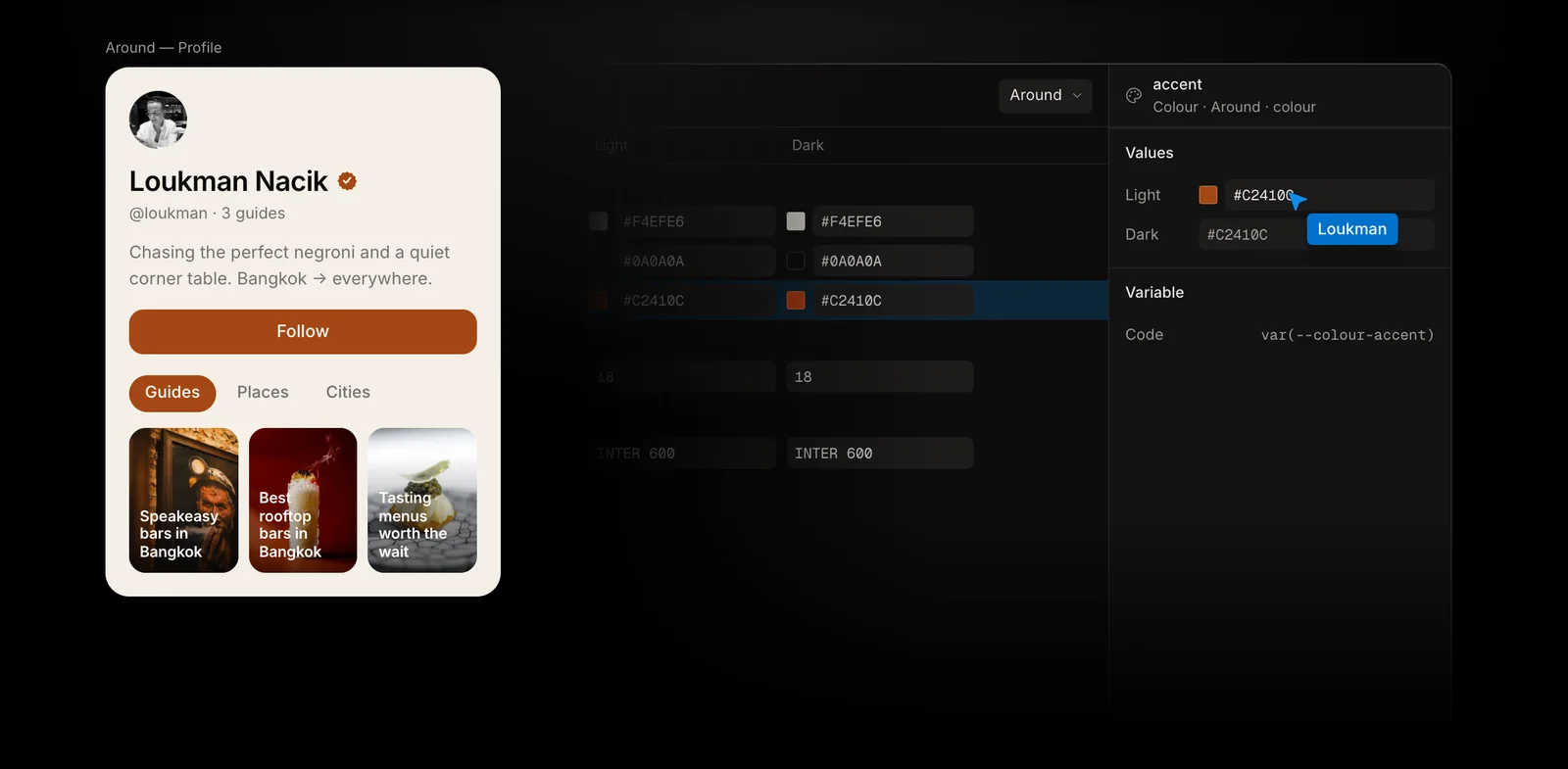
- The file gives one value for each token, so for a dark mode, click + (Add mode) at the end of the column heads on Variables and set the dark values, as in Add a dark mode.
Step 4: Design with it
- Open a file, click an empty part of the board so nothing is selected, and in the right panel set Design system to the new one.
- Ask your connected agent: “In my open Kite file, design a sign-up screen with the file's design system.” It reads the variables, text styles and skills first, then draws with them, so the colours, type and corners are the file's.
Step 5: Download it for your code
- On the design system's page, choose Export → Download DESIGN.md.
- Put the file in your project and tell your agent to use it: Google's spec names no folder, and awesome-design-md suggests the project root.
The file opens with the tokens as Google's spec sets them out, a format the spec means to be followed “between different AI agents and tools”. Under them come the variables as CSS with every mode, then the styles and each skill. Change the system in Kite and download it again to keep your copy in step.
To check it, run Google's linter in the folder:
npx @google/design.md lint DESIGN.mdGoogle's command-line tool runs eleven rules, such as references to tokens that don't exist, a missing primary colour, component contrast under the WCAG AA minimum of 4.5:1, and sections out of order. It exits with code 1 if it finds errors, so a build can stop on them. On Windows, Google says to run npx -p @google/design.md designmd lint DESIGN.md instead. The same tool also compares two versions of a file for token-level changes, and exports the tokens to Tailwind or to the W3C Design Tokens format, which is useful if a project uses your file without Kite.
How we checked it
We tested Kite's reader on a real file on November 5, 2026, the Airbnb one in awesome-design-md, and it came in as 39 variables, 18 text styles and 2 skills. That collection builds its files from publicly visible CSS values, so this is not Airbnb's own system. We also ran Google's linter on Kite's export of its Default preset, and it reported 0 errors and 0 warnings, so that result rests on one preset. On the Airbnb file itself, the same linter reported 0 errors and 30 warnings, mostly component contrast under WCAG AA and colour tokens that no component uses, so a clean import does not mean a clean file.
We have not tested a real Stitch export, in either direction: what this page says about Stitch comes from Google's pages and the format spec. One import and one export are not proof for every file, and the format can still change while it is at version alpha. Look through the Variables and Skills tabs after your own import, as step 3 describes.
Questions
Is a DESIGN.md the same as design tokens?
It holds design tokens and more: the tokens give exact values, and the words around them give the reasons and the rules, which is what an agent needs to use the values well. Kite keeps both: the tokens as variables and text styles, the words as skills. For a token tool or a build pipeline, Kite also exports DTCG JSON.
Which tools read a DESIGN.md?
Google Stitch imports and exports it, its MCP server has a tool named create_design_system_from_design_md, and its command-line tool can audit a running page against the file. A coding agent such as Claude Code, Codex or Cursor reads it like any other file in your project, so tell the agent to use it. In Kite it becomes a design system that every file and agent in the workspace can use.
Who made the format, and is it stable?
Google Labs made it for Stitch, announced it in March 2026 and open-sourced the draft specification in April 2026, under the Apache-2.0 license. It is not stable yet: Google's repository says the format is at version alpha, and to expect changes as it matures.
How do I keep the file and Kite in step?
Make Kite the place you change it: edit the design system, then download the file again and replace the old one. Google's diff command, npx @google/design.md diff, shows which tokens changed between two versions. To bring someone else's changes into Kite, make a new design system from their file and set your files to use it.
Can the file hold a dark mode?
Google's token schema gives one value for each token, so a file you import comes in with one mode, and you add the dark values in Kite. When you download the system again, the tokens stay in Google's format, and the CSS section under them carries every mode.
Next
- Design systems: collections, modes, styles, aliases, and the other exports (CSS, Tailwind, DTCG JSON).
- Put your brand in a design system, from your website.
- Build a button component with your new variables.